How to Test Dropdowns
Test native and custom dropdown menus in Endtest Web Tests. Select by visible text, value, or index, and assert on the selected option.
Introduction
A dropdown element allows a user to select one or more options from a limited set of choices.
<select style="width:100px" name="pets" id="pets">
     <option value="cat">Cat</option>
     <option value="dog">Dog</option>
     <option value="rabbit">Rabbit</option>
</select>
The best way to interact with that <select> element is with the Select Option action.
In the Select Option step, you have to provide the locator for the <select> element and the option you want to choose.
In the Option to pick input, you need to provide the text from the <option> element, or the value, or the index.
For example, if we want to select the Rabbit option from our dropdown:
| Strategy | Value |
|---|---|
| Text | Rabbit |
| Value | rabbit |
| Index | 2 |
Here is what the step would look like if we use the value:

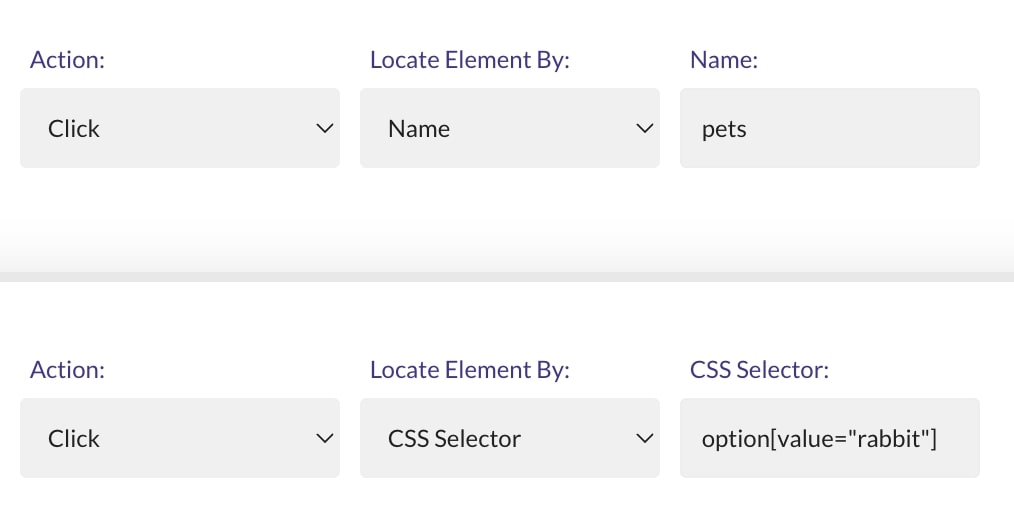
You can also pick an option by using 2 Click steps.
The first Click step will open the dropdown.
And the second Click step will pick the option.
2. Modern Dropdowns
Since <select> elements have limited styling options, you'll encounter modern dropdowns in some web applications.
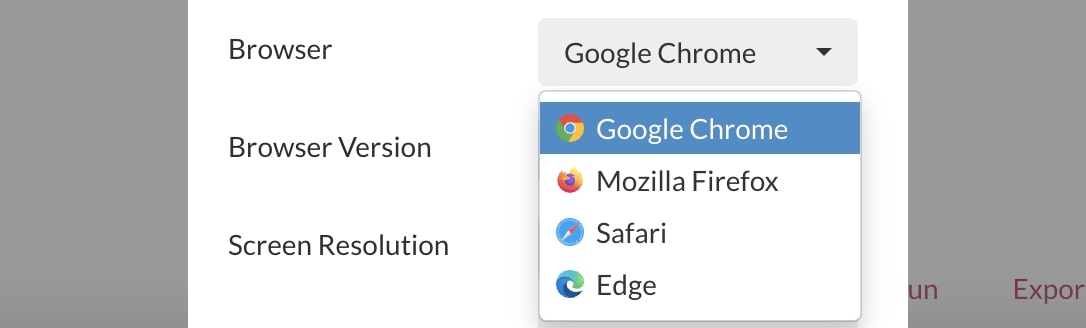
One good example is the Browser dropdown from our Web Tests section:
A modern dropdown is usually built with <div> elements.
Sometimes, those <div> elements might be generated on top of <select> elements that are no longer interactable.
The Select Option action is built to work only with classic dropdowns (<select> elements).
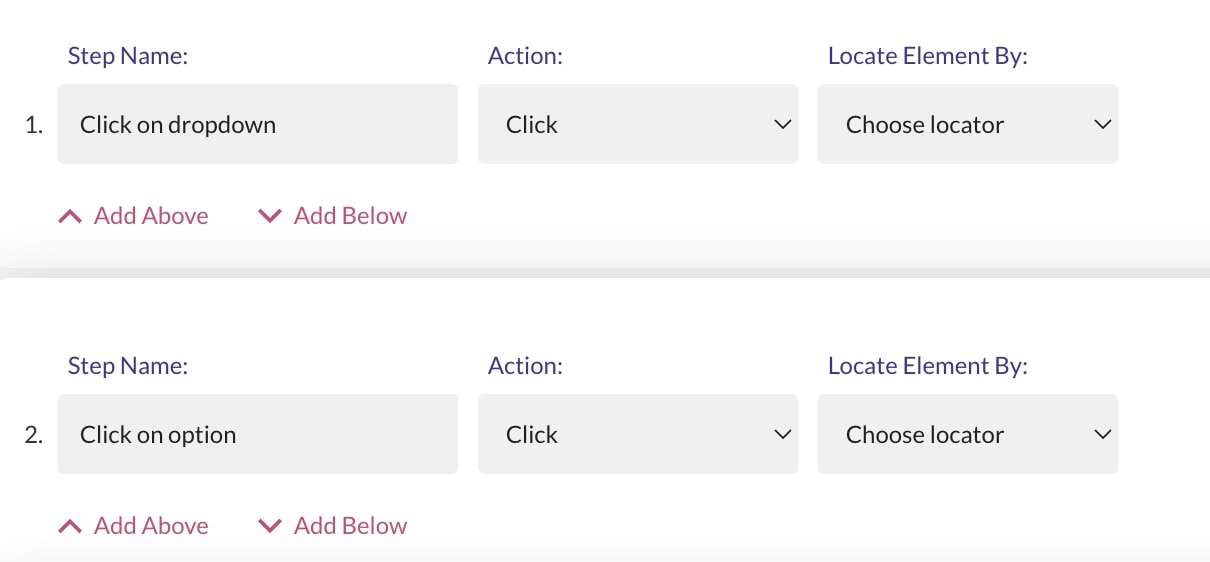
For modern dropdowns, you will need to use 2 Click steps, one to open the dropdown, and one to pick the option.
Technically, you could also use an Execute JavaScript step to select an option from a dropdown.
But that option is only recommended as a last resort, since it does not mimic a real user.