How to Scroll in Web Tests
Scroll in Endtest Web Tests: scroll to elements, scroll by pixels, scroll inside containers, and trigger lazy-loaded content reliably.
Introduction
You might encounter scenarios where you need to perform a scroll.
There are 2 types of scrolls that we'll cover in this chapter:
- Scroll the entire window.
- Scroll inside an element.
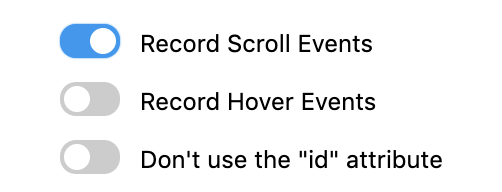
By default, the Endtest Chrome Extension will not record scroll events.
You can change this by enabling the Record Scroll Events option.
1. Scroll the entire window
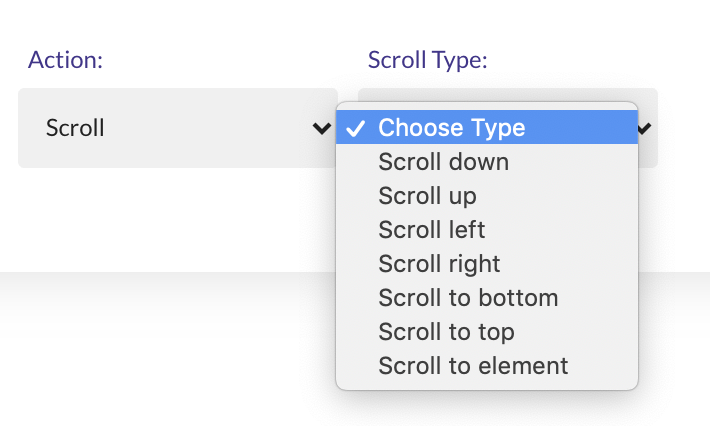
In order to scroll the entire window, you can use the Scroll action.
This action allows you to provide a scroll distance in pixels or a destination.
You can also scroll the entire window by using an Execute JavaScript step:
window.scrollTo(0, 500);The first parameter is the destination to scroll to, along the x-axis (horizontal), in pixels.
And the second parameter is the destination to scroll to, along the y-axis (vertical), in pixels.
The
Scrollaction works only for scenarios where the entire browser window needs to be scrolled. This applies when the scrollbar spans the full height of the screen and is located on the right side of the window.If you need to scroll within a specific element (e.g., a div with its own scrollbar), the
Scrollaction will not work for such situations.
2. Scroll inside an element.
The only way to scroll inside an element is by using an Execute JavaScript step:
document.querySelector("css-selector-of-element").scrollTop = 500;You will need to get the CSS Selector for your element and add in the JavaScript code.
And you will also specify the number of pixels the element's content is scrolled vertically.
If the number is a negative value, the number is set to "0".
If the element cannot be scrolled, the number is set to "0".
If the number is greater than the maximum allowed scroll amount, the number is set to the maximum number.
You can also use
scrollLeftif you want to scroll horizontally inside an element.