Performing Complex Gestures
Perform pinch, zoom, multi-touch, drag, swipe, and long-press gestures in Endtest Mobile Tests, for both iOS and Android applications.
Introduction
In some scenarios, your test might need to perform complex gestures.
For example, pinching and zooming on a map.
You can combine multiple Touch Actions into a Sequence
Additionally, you can combine multiple Sequences into a Multi Touch Actions Sequence.
Actions
1. Set Touch Action
The Set Touch Action allows you to define a Touch Action:
- Tap and Hold
- Move
- Release

Names must be provided for each Touch Action.
These names will be used when executing the Touch Actions or when combining them into a Sequence.
Set Touch Action step will not execute that Touch Action it will only define it. 2. Execute Touch Actions Sequence
After defining the Touch Actions with Set Touch Action steps, you can execute them with an Execute Touch Actions Sequence step.
The names of the defined Touch Actions must be provided, separated by + signs.

3. Set Touch Actions Sequence
This action can be used if you want to store multiple Touch Actions in a Sequence.
Set Touch Actions Sequence step will not execute the Sequence; it will only define it. 
Names must be provided for each Sequence.
These names will be used when executing the Sequences.
4. Execute Multi Touch Actions Sequence
This action can be used to execute multiple Sequences at the same time.
A good example is when you want to pinch and zoom on a map.
Both fingers would perform separate Sequences simultaneously.
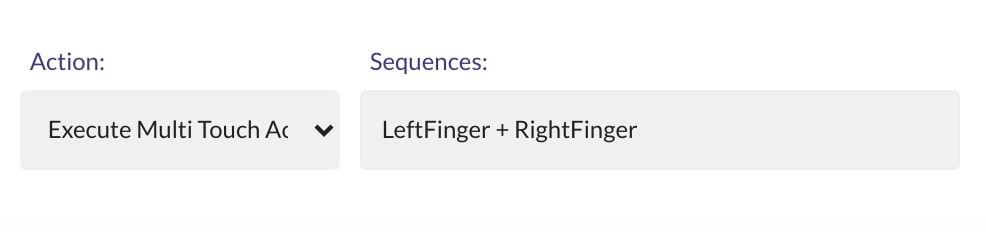
The names of the defined Sequences must be provided, separated by + signs.
To understand a complex gesture, it's best to first break down that gesture into
Sequences.Then, break down those
SequencesintoTouch Actions.For example, pinching and zooming on a map is a gesture.
That gesture is made up of 2
Sequences.Each finger will perform a separate
Sequencesimultaneously.Each
Sequenceis defined by 3Touch Actions(Tap,Move,Release), executed one after another.